
Edit Like a Pro
on Your Smartphone
Snapseed, VSCO, Lightroom Mobile — each excels at something different. Learn which app to use and when.
Have you wondered?
"Snapseed, VSCO, Lightroom Mobile — do I need all three? What's the difference?"
They each have a different role. Snapseed is for precision tools (selective adjustments, healing, perspective correction). VSCO is for film-style filters and sharing. Lightroom Mobile is for RAW editing and syncing with your PC. All three have free basic versions, so starting with just Snapseed is the practical choice.
"How is app editing different from Instagram filters? Do I really need a separate app?"
Instagram filters apply to the entire image at once. App editing lets you select specific areas and apply different brightness and color adjustments there. For example, you can brighten only a person's face, or boost saturation in just the sky. This difference has a huge impact on the final quality.
Non-destructive editing
Saves only the edit values without touching the original. You can always return to the starting point.
Selective adjustment
Select a specific area of the photo and adjust its brightness and color independently. More powerful than global edits.
LUT / Preset
Apply the color grading looks used by film directors with a single tap. Create your own signature tone.
Snapseed
Google · Free · iOS + Android
The most powerful free mobile editing app. The selective adjustment tool is far more intuitive than in other apps.
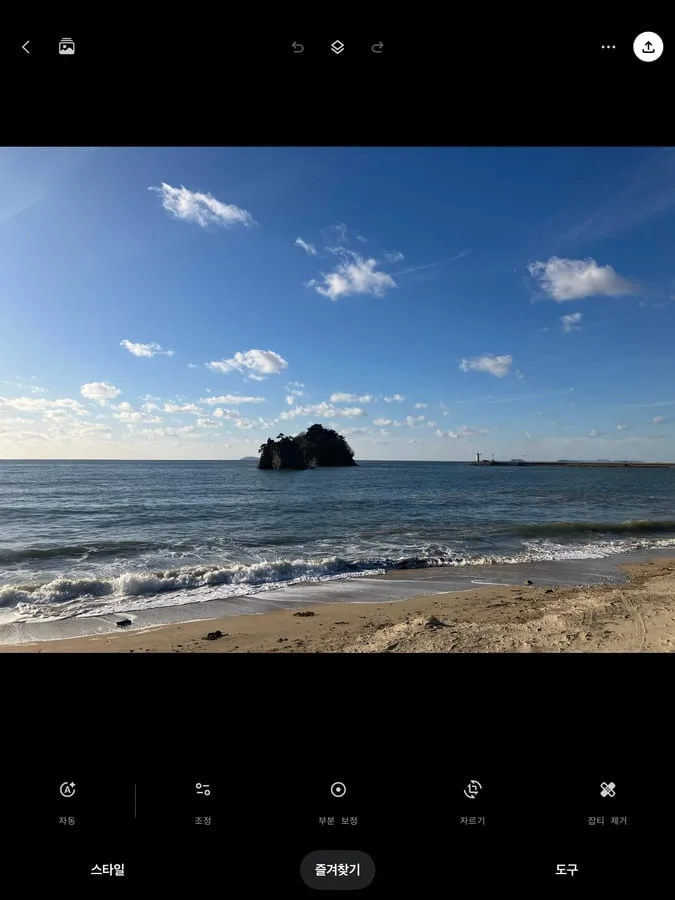
▲ Snapseed editing screen — selective adjustment brush and tools panel
Basic
EssentialAdjust Brightness, Contrast, Saturation, Highlights, and Shadows on one screen. Drag up/down to select a parameter; drag left/right to adjust the value.
Selective
Key ToolTap a spot to select only areas with similar color and brightness. Pinch to adjust the influence area. Edit skin, sky, and background independently.
Healing
UsefulBrush away dust, blemishes, or unwanted objects. Automatically fills in with surrounding texture.
Perspective
UsefulAutomatically corrects tilted vertical lines in architecture shots or table perspective in food photos.
HDR Scape
LandscapesAdds strong texture and detail to landscape photos. Keep strength below 30 to avoid looking unnatural.
expand_moreLearn more — Snapseed's Stack (non-destructive editing)
All Snapseed edits are stored in a 'Stack'. You can view them via the history icon in the top right → 'View Stack'.
- Tap the pencil icon next to each edit step to return to its previous values and re-adjust.
- Save as a 'Style' to apply the same edit stack to another photo with a single tap.
- The original is preserved until you export as JPEG — you can always undo.
VSCO
VSCO · Free (basic) / Paid (premium) · iOS + Android
The app with the best film simulation filters. Specializes in tone and mood rather than basic correction.
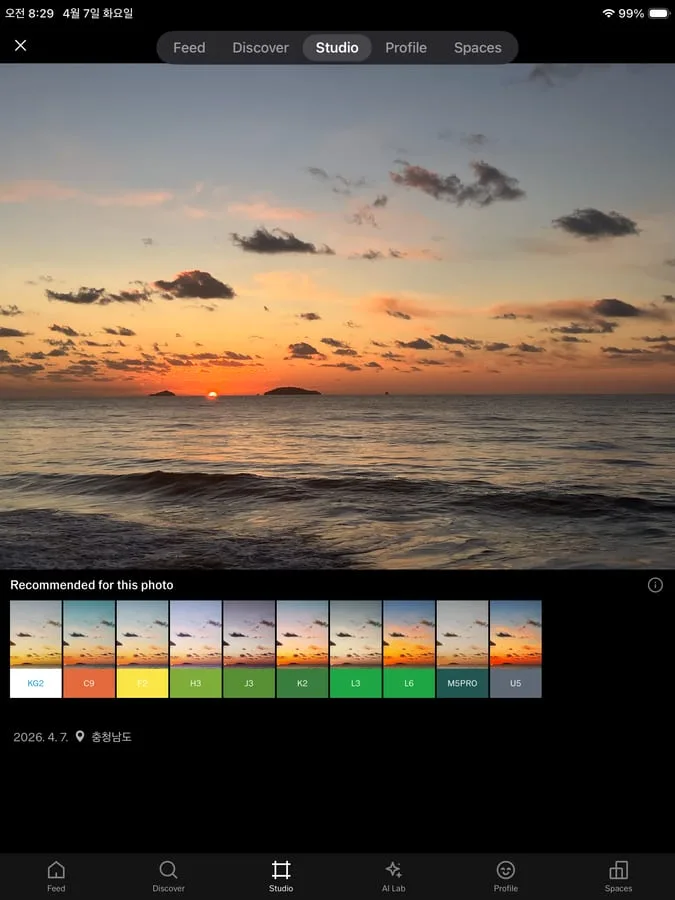
Recommended Free Filters (free as of 2025)
A4
Cool, refined film feel
✦ City · Architecture · Street
C1
Warm, low-saturation vintage
✦ Portraits · Everyday
HB1
High-contrast B&W film
✦ B&W Street
F2
Soft, bright summer feel
✦ Food · Travel
Filter Strength Is Key
After selecting a filter, tap it again to reveal the strength slider (1–12). The default is usually too strong. A range of 4–7 typically looks most natural.
Workflow Order (VSCO)
- Open the photo in VSCO and set the base with basic adjustments (exposure, contrast, saturation)
- Select a filter and lower the strength to 4–7
- Fine-tune with Grain, Skin Tone, and Fade
- Save → optionally add selective adjustments in Snapseed
Lightroom Mobile
Adobe · Free (basic) / Subscription (premium) · iOS + Android
Syncs with PC Lightroom and supports RAW editing. The free tier covers all essential editing tools.
Core features available for free
- Basic (Exposure · Contrast · Highlights · Shadows)
- Hue · Saturation · Luminance (HSL)
- White Balance
- RAW file editing
- Cloud sync with PC
Paid (subscription) only
- Masking (auto subject/background/sky selection)
- Healing Brush
- Geometry (perspective correction)
- Advanced presets
- Full Lightroom Classic sync
App Selection Guide — Why Use Each App
All three apps have a free basic version. One app is enough, depending on your goal.
Snapseed
The selective tool (independent adjustment of specific areas) is the most powerful among free apps. Intuitive to use without complex setup — the ideal choice for starting mobile editing.
VSCO
Filters built by analyzing actual film characteristics look more natural than other apps. With social sharing and community features built in, it's efficient if you want to maintain a consistent tone.
Lightroom Mobile
Core strengths are RAW file editing and cloud sync with PC Lightroom Classic. If you want a consistent editing workflow with presets from PC applied on mobile, it's essential.
Mobile Editing Workflow
Combining apps makes your editing more powerful. Here are recommended flows by purpose.
Quick SNS Upload
3–5 minDetail Finishing (Portraits / Food)
10–15 minFilm Aesthetic
10 minFirst Try: Snapseed Selective Adjustment
- →Install Snapseed and open one recent photo
- →Tools → Basic: adjust exposure and contrast
- →Tools → Selective: tap on a face or food
- →Brightness +20, Saturation +10 for that area only
- →Tools → HDR Scape: add detail at strength ≤20 (landscapes only)
- →Upload the finished photo to AI for editing style analysis
More Content to Explore
Last updated: April 2026