
Beyond Auto —
How to Shoot in Pro Mode
There are several modes beyond Auto in your camera app. Knowing when each mode is needed and how it works means you'll never be caught off-guard.
Q. The Common Question
"Does Pro Mode always produce better photos?"
Not necessarily. Pro Mode is a manual mode where you set ISO, shutter speed, and white balance yourself — so wrong settings can produce worse results than Auto. Auto is better for bright daylight snapshots. Pro Mode only becomes effective in situations where Auto fails: night shots, backlit scenes, or fast-moving subjects.
Q. The Common Misconception
"Is Portrait Mode bokeh the same as real lens bokeh?"
No. Portrait Mode blur on smartphones works by AI classifying the subject outline and then artificially blurring the background. This is why the edges around hair, glasses, and complex backgrounds often look unnatural. Real camera bokeh is created by lens optics and is naturally smooth.
Camera Modes at a Glance
A situation-by-situation breakdown of which mode to use.
| Mode | Best For | Watch Out For |
|---|---|---|
| Auto | Everyday · bright daylight · quick snaps | Fails in dark indoors and backlit scenes |
| Pro / Expert | Night shots · backlit · creative control | Wrong settings → overexposure or blur |
| Night | Dark indoors · night scenes | Moving subjects cause ghosting |
| Portrait | Subject emphasis · background separation | Complex backgrounds and hair edges look unnatural |
| Ultra-Wide | Full buildings · group shots · landscape | Edge distortion occurs |
| Video Pro | Manual control during video | Unnecessary for general shooting |
Pro Mode Practical Settings
You don't need to adjust every value in Pro Mode. Changing just one thing at a time reduces mistakes.
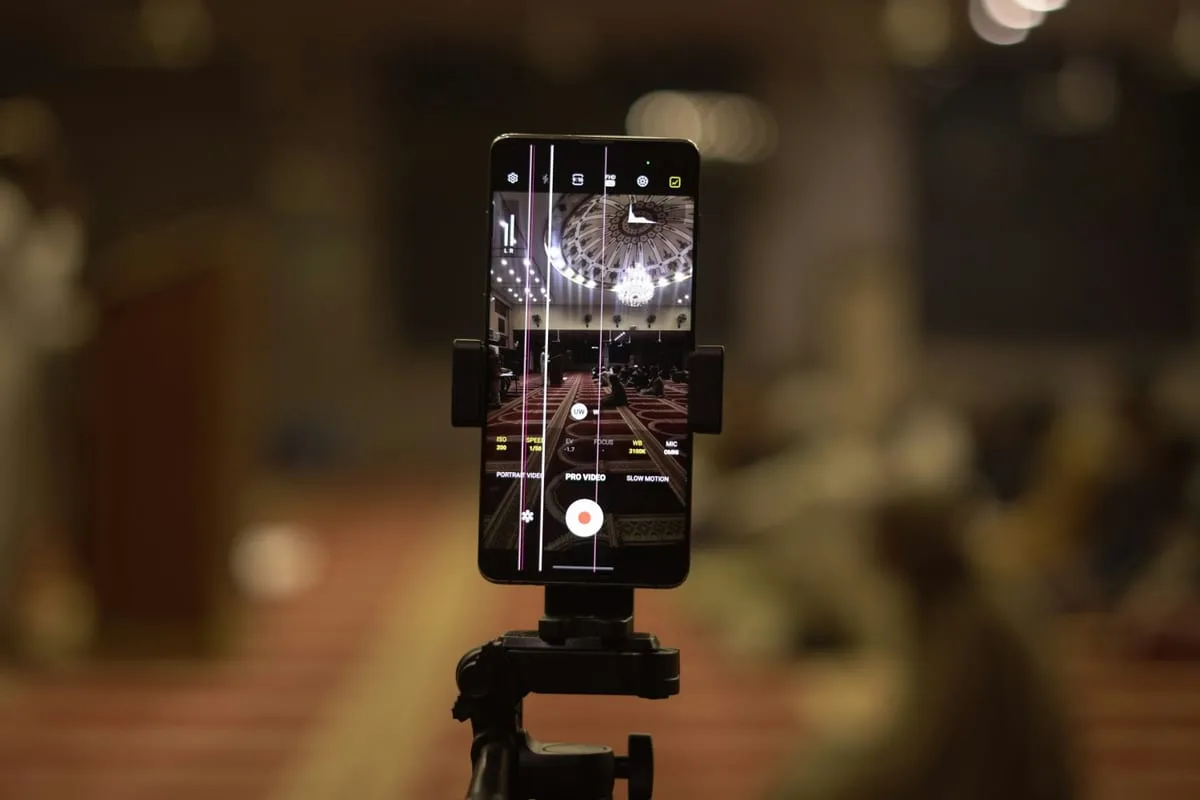
ISO
Light sensitivity. ISO 50–200 is sharp and noise-free. ISO 800+ for dark conditions — noise (grain) increases.
Tip: During the day, lock ISO at 100 or below → adjust shutter speed only
Shutter Speed (SS)
1/1000s — fast subjects. 1/30s and below — night long exposure (tripod essential). Below 1/60s risks shake.
Tip: Keep above 1/60s when shooting handheld
White Balance (WB)
Corrects color temperature of light. Use to fix blue cast under fluorescent lights or orange cast under tungsten.
Tip: Leave on AWB (auto) and adjust manually only when color looks off
Exposure Compensation (EV)
Shifts the auto exposure baseline up or down. Available in most apps without Pro Mode.
Tip: The first manual adjustment to learn — the one you'll use most
Night Mode — How It Works & Its Limits
Night Mode is not magic. Understanding the principles lets you judge when to use it and when to turn it off.
How Night Mode Works
- 1.Camera shoots 5–15 frames continuously over 0.5–3 seconds (device-dependent)
- 2.AI analyzes and aligns bright/dark areas in each frame
- 3.Noise is reduced by averaging frames; detail is preserved and composited into 1 shot
- 결과:.Result: bright image possible while keeping ISO low
When Night Mode is effective
- • Static night scenes (buildings, streets)
- • Steady tripod or wall-propped shots
- • Dark indoor interiors
When to turn Night Mode off
- • Moving subjects (people, cars) → ghosting
- • When you need rapid burst shots
- • When doing manual long-exposure in Pro Mode
Exposure Time Setting: iPhone can adjust max Night Mode exposure time with a slider (up to 30 sec, tripod required). Samsung Pro Mode lets you set shutter speed directly. Longer exposure = brighter image with special effects like light trails.
Portrait Mode — AI Bokeh in Practice
Portrait Mode is convenient, but knowing the principles and limits lets you use it better and reduce failures.
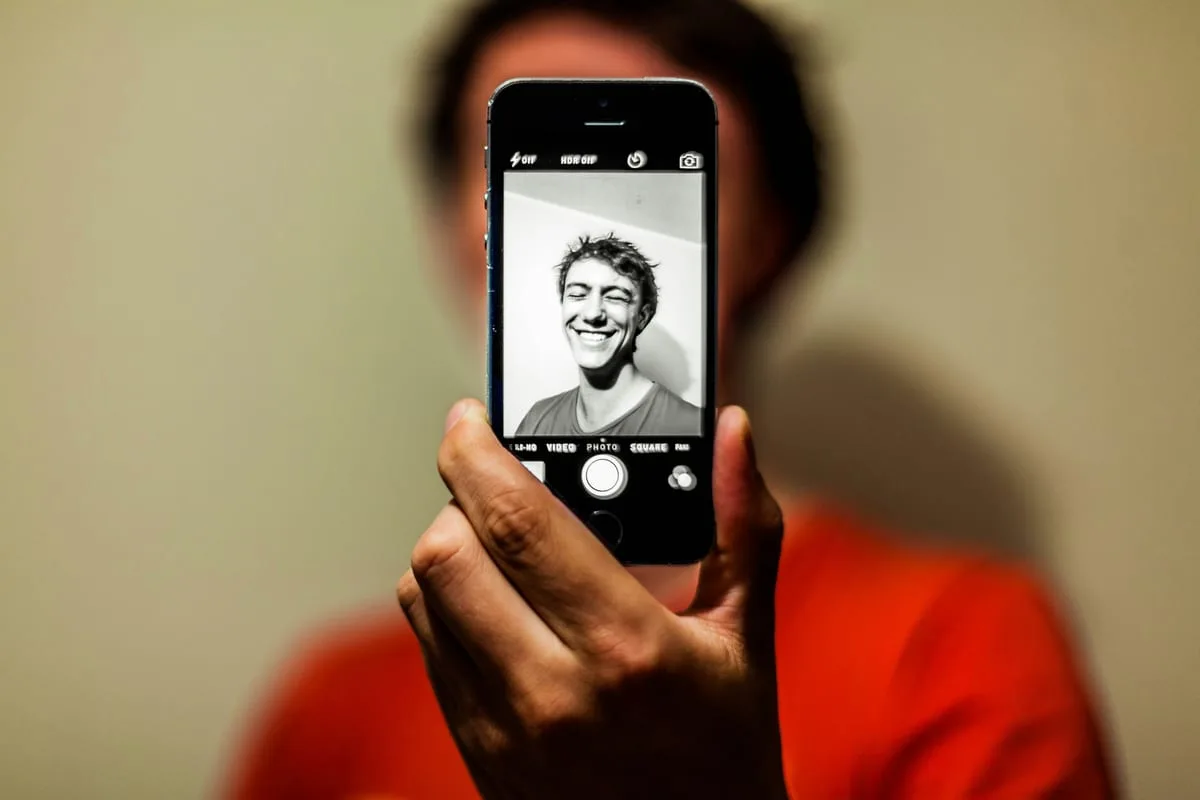
Conditions for Portrait Mode success
- ✓Distance between subject and background (minimum 1–2m)
- ✓Simple background or clearly different colors
- ✓Bright environment (AI classification accuracy drops in the dark)
- ✓Subject facing the camera
Conditions that cause Portrait Mode failure
- ✗Subject and background are similar colors (blurry boundary)
- ✗Hair, glasses, hat edges (hard for AI to classify)
- ✗Subject is right in front of the background
- ✗Complex backgrounds (plants, lattice windows, etc.)
expand_moreLearn more — Histogram · Zebra Pattern · RAW+JPEGAdvanced
Checking the Histogram
Some Pro Modes and third-party apps (Halide, ProCam) show a live histogram. If the right edge is clipped, the highlights are blown out; if it's stacked on the left, the image is underexposed.
Zebra Pattern
A feature that displays overexposed areas as striped patterns. Available in video Pro Mode and some third-party apps. Useful for protecting sky and white clothing detail in bright outdoor shots.
RAW+JPEG Simultaneous Capture
iPhone ProRAW and Samsung Expert Mode allow saving both RAW and JPEG simultaneously. JPEG for instant sharing, RAW for in-depth editing in Lightroom Mobile. Watch storage — RAW files are 20–50MB each.
Today's Mission
Compare 3 Modes at the Same Location
- 1Find the same subject by a window or outdoors, shoot in Auto Mode
- 2In Pro Mode, lower ISO (50–100) and match the shutter speed, then shoot again
- 3If there's a person, try Portrait Mode and check the background edge quality
- 4Compare all 3 shots side by side
More Content to Explore
마지막 업데이트: 2026년 4월