
One App Is All You Need —
Mobile Editing
Once you know which app to use — Snapseed, Lightroom, or VSCO — and in what order to edit, you'll never need to think about it again.
Q. Frequently Asked
"Snapseed, Lightroom, VSCO — do I need all three?"
They each serve a different purpose. Snapseed is for selective editing and quick fixes. Lightroom Mobile is for RAW editing and precise adjustments. VSCO specializes in film-style filters and series consistency. Starting out, Snapseed alone is more than enough.
Q. The Most Common Editing Mistake
"How much editing is too much?"
The benchmark is: "what did you bring out from the original?" Correcting exposure and color temperature compensates for shooting conditions. Completely changing skin color or pushing saturation to extremes is over-editing. Build the habit of comparing with the original after every 10% of adjustment.
App Comparison at a Glance
Choose based on your situation and what you want to achieve.
Snapseed
Strength: Selective editing, quick fixes
A free app by Google. The Selective tool (adjusting brightness/color for a specific area only) is powerful. 10 minutes is all you need to learn the basics.
Lightroom Mobile
Adobe
Strength: Precise RAW file editing
Adobe's mobile version. Edit smartphone RAW files at near-desktop quality. Supports histogram, curves, and color mix.
VSCO
VSCO
Strength: Film style, series consistency
Specializes in film camera simulation filters. Highly effective when you want a unified look for your Instagram feed.
Snapseed — The First App to Master
Free and powerful. The Selective editing feature is hard to find elsewhere for free.
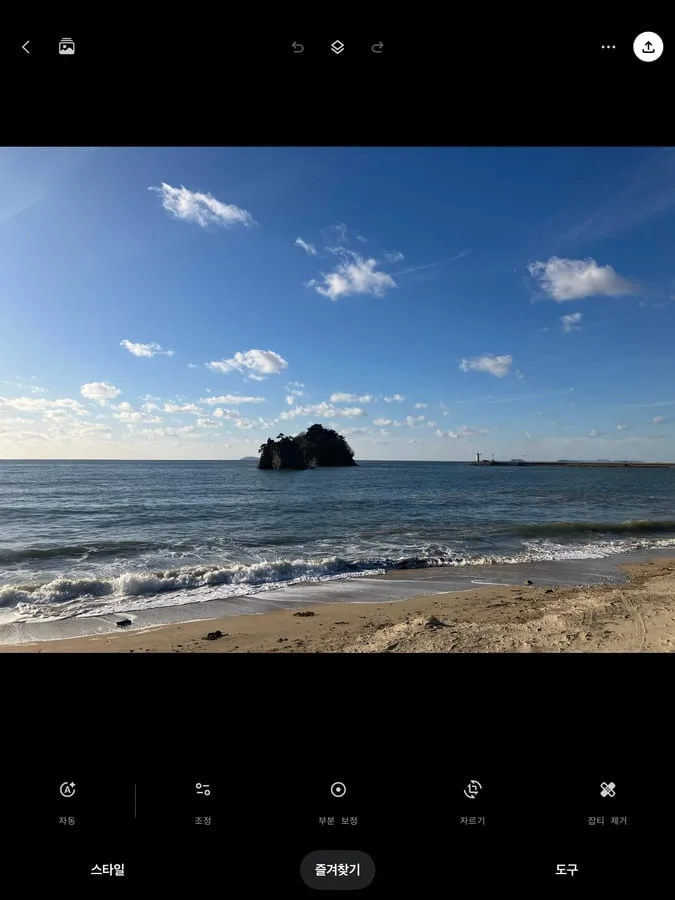
Tune Image
Adjust brightness, contrast, saturation, highlights, shadows, and warmth all in one screen. Swipe up/down to select a parameter, left/right to adjust.
Selective
Tap a specific area with your finger to change only that area's brightness, saturation, and contrast. Useful for brightening just a face or lowering background saturation only.
Details
Controls sharpening and noise reduction. Effective for reducing noise in night shots or improving overall sharpness.
Perspective
Automatically or manually corrects the horizon on tilted photos. Frequently used for architectural, food, and tabletop shots.
Lightroom Mobile — For Serious RAW Editing
Shines with RAW files more than JPEG. Basic editing is available for free.

Light
6 sliders: exposure, contrast, highlights, shadows, whites, blacks. Lower highlights for overexposed sky; raise shadows for dark areas.
Color
Color temperature (warm/cool), tint, saturation, vibrance. The HSL panel for changing individual colors is also free.
Detail
Sharpening and noise reduction. Noise reduction is especially effective on dark photos taken at high ISO.
Preset
Pre-saved settings that apply multiple slider values at once. Official Adobe presets and user-created custom presets supported.
VSCO — Film Style and Series Consistency
Specialized in mood and atmosphere rather than precise editing. Ideal when you want a consistent color palette across your Instagram feed.
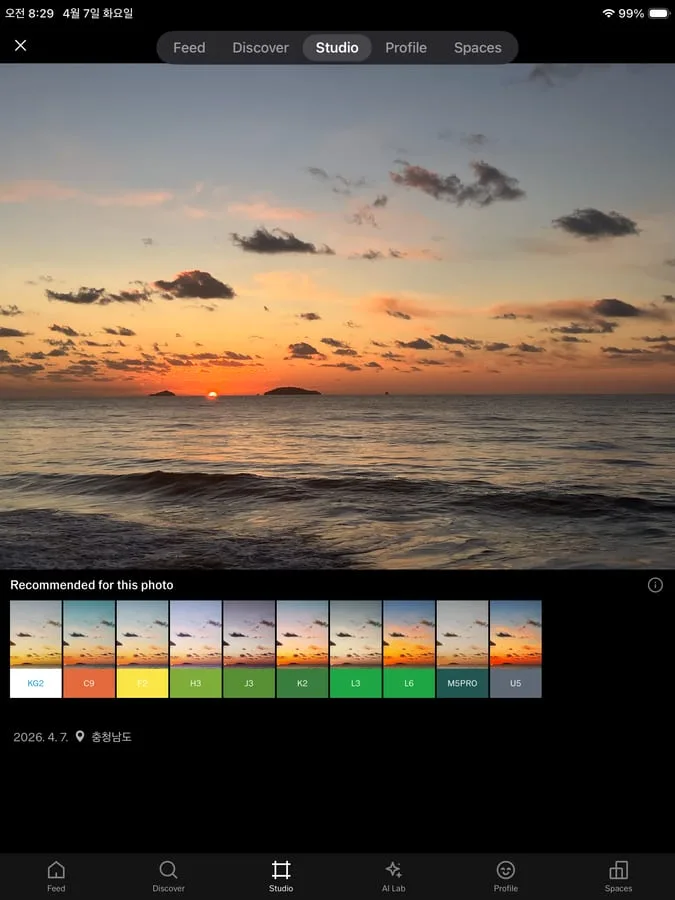
Free filters to get you started
Recommended Editing Order
Whatever app you use, following this order produces natural results.
Crop & Level
Fix framing and horizon first. Cropping after other edits causes quality loss.
Exposure Adjustment
Set the overall brightness. Adjusting highlights and shadows separately brings out more detail.
White Balance Correction
Correct color temperature (warm/cool). Remove yellow cast from fluorescent lights or blue cast from overcast skies.
Color & Saturation
At this point, apply a filter (VSCO) or fine-tune saturation.
Sharpening & Noise
Finally, slightly increase sharpness or reduce noise. Over-sharpening looks unnatural.
expand_moreLearn more — Snapseed Stack · Non-Destructive Editing · Preset SharingAdvanced
Snapseed Stack — Non-Destructive Editing
Snapseed's Stack feature lets you layer edit steps and go back to modify or delete specific steps later. Access it via ···(More) → View Edit Stack in the top right. The original file is always preserved.
Sharing Lightroom Presets
In Lightroom, you can save your own edit values as a preset and apply them to other photos instantly. Powerful for processing multiple photos from the same location with a consistent look. You can also import other people's preset files (.xmp).
Lightroom vs. Desktop
No matter how far mobile editing has come, desktop Lightroom Classic's masking and AI editing features are far more powerful. Save RAW files to Adobe Cloud to start editing on mobile and finish on desktop.
Today's Mission
Edit One Photo with Snapseed
- 1Install Snapseed and open a recent photo
- 2In Tune Image, adjust brightness, contrast, and highlights each by 10 points
- 3Use Selective to brighten just the face (or main subject) slightly
- 4Use the before/after comparison (two-finger tap on the photo) to see the difference
More Content to Explore
마지막 업데이트: 2026년 4월